Show separate lines for each quantity of item on packing slip
Sometimes packing mistake can happen, especially for a line item that contains multiple quantity, packers might mistakenly pick only 1 quantity for a line item (as typically one item usually only has one quantity). This would cause customer dissatisfaction, when customers found out they have received less quantity than they have ordered, and you would have to arrange additional shipment to ship the missed quantities.
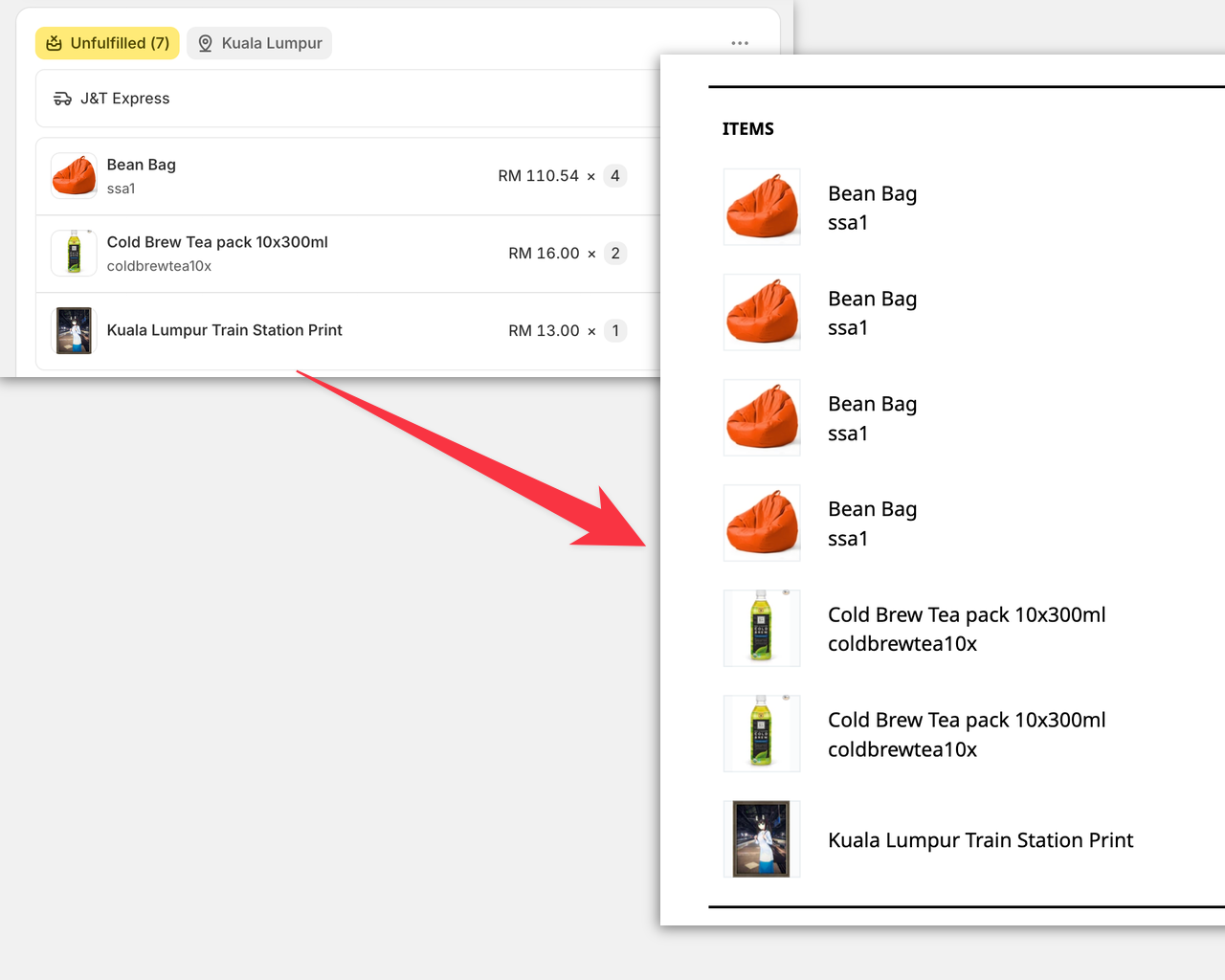
To reduce the occurrence of packing mistake, you can display an item multiple times in the packing slip, if the item quantity is more than one.
In this tutorial, you will be guided to modify the packing slip template code, to achieve the following output of packing slip :
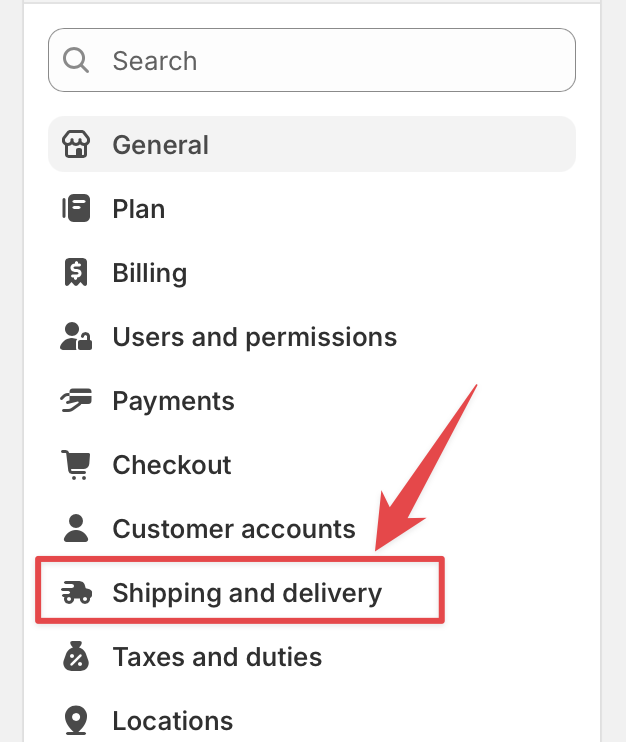
First, go to your store settings, and select “Shipping and delivery” :
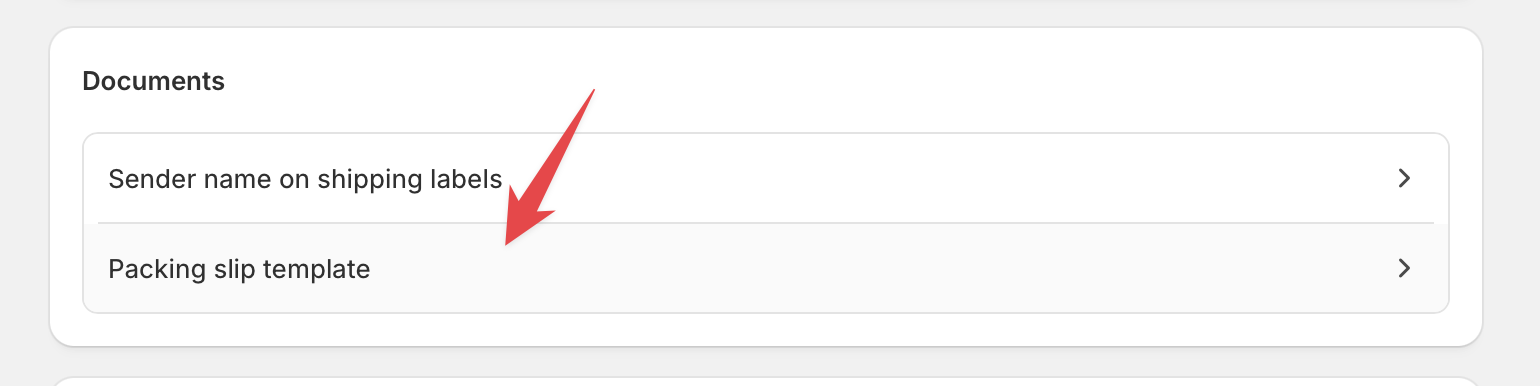
Next, scroll down and select “Packing slip template” :
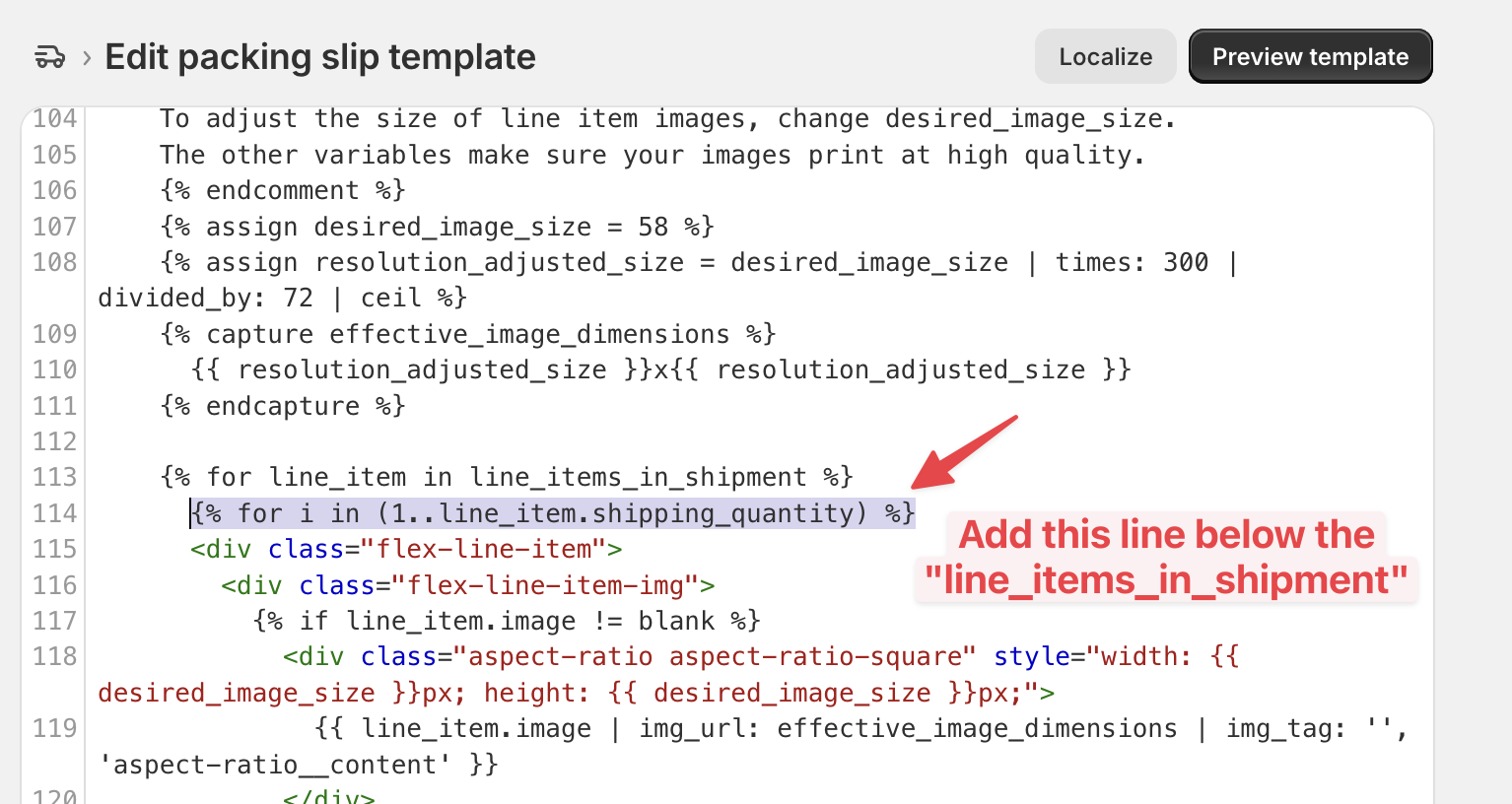
In the packing slip template code window, search for the line {% for line_item in line_items_in_shipment %} , which should be around line 113.
Then insert this code, below that line :
{% for i in (1..line_item.shipping_quantity) %}
Next, we will need to change the display of quantity to “1”, from the original quantity (as we are outputting each quantity as each own row).
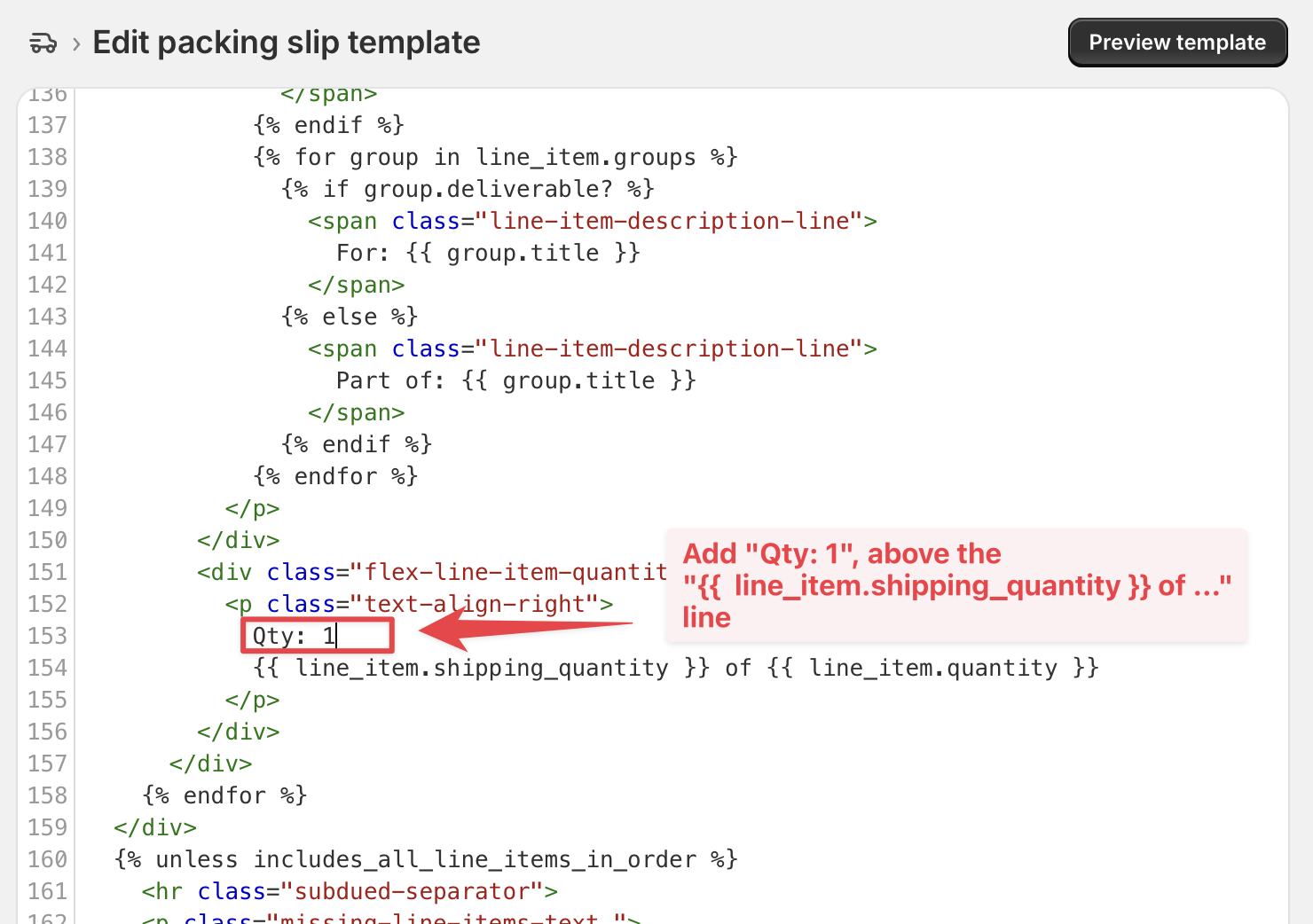
Search for the line {{ line_item.shipping_quantity }} , and insert “Qty: 1” above it. (you can change this text to “Quantity: 1”, or other text you like).
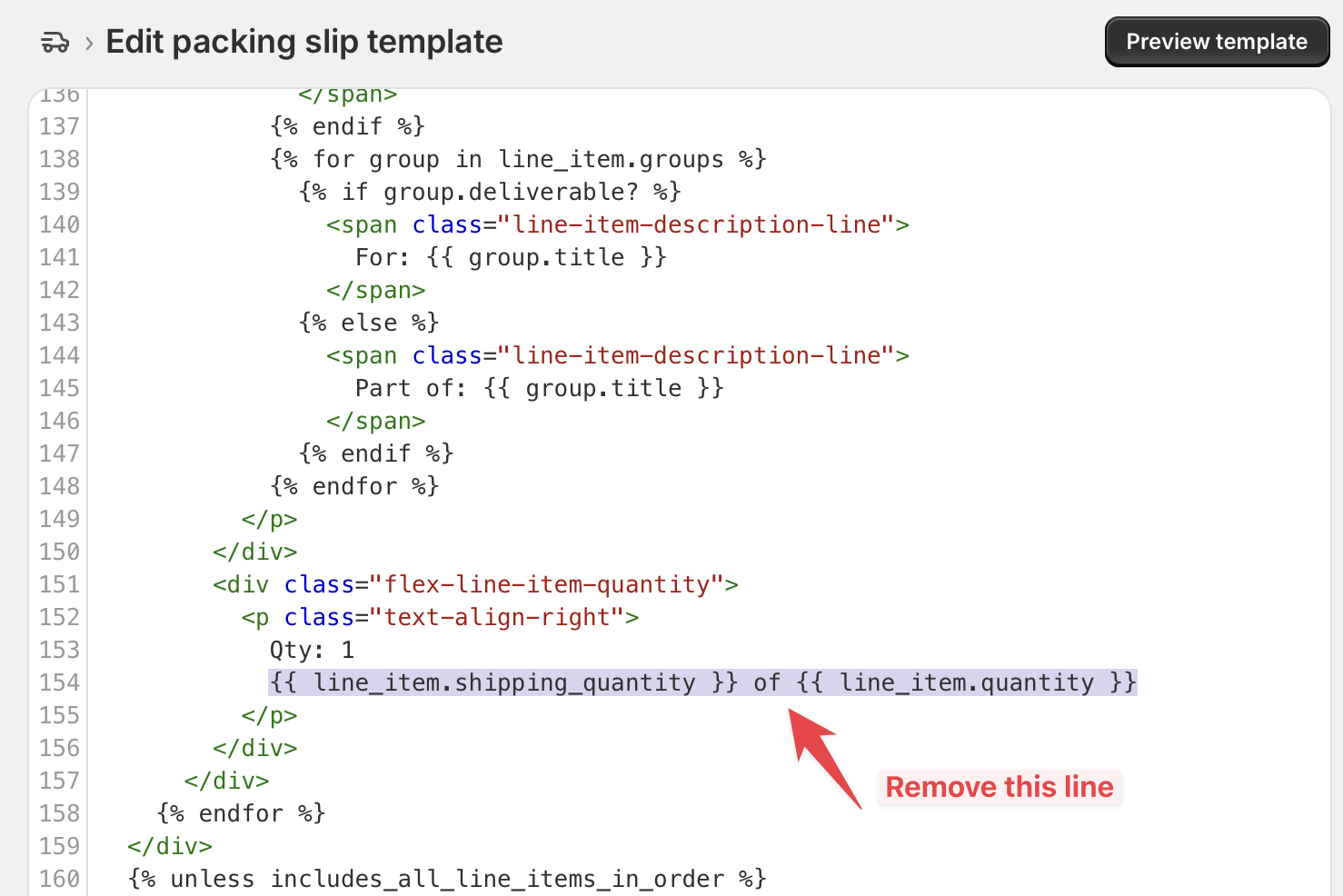
After inserting the “1” quantity text, we will then proceed to remove the original quantity below it. ({{ line_item.shipping_quantity }} of {{ line_item.quantity }} )
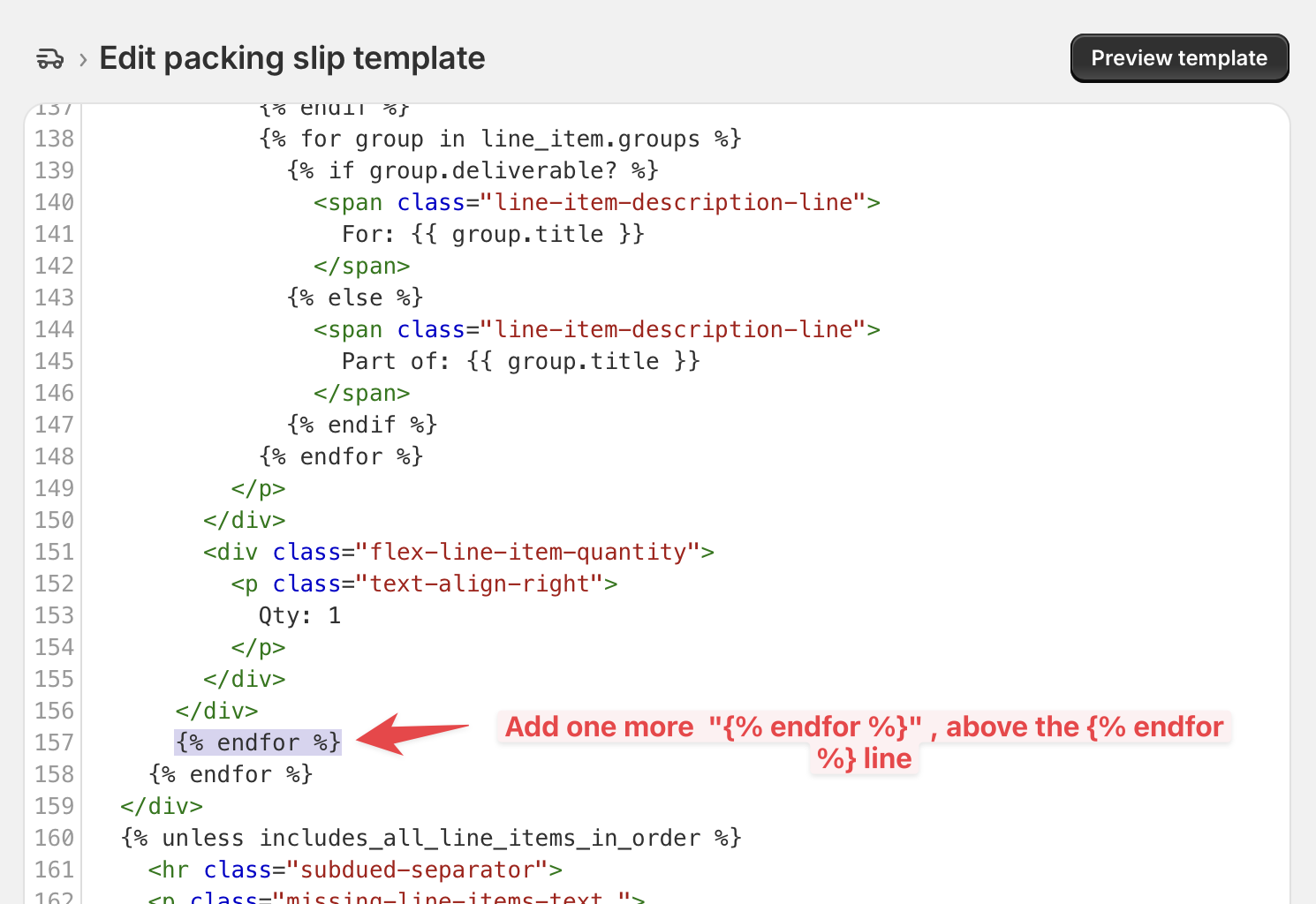
Finally, insert an additional {% endfor %} , right above the {% endfor %} line, that is located below the “Qty: 1” text. (which should be around line 157)
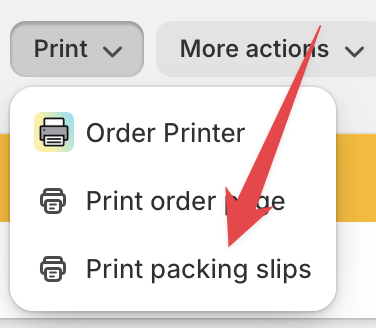
Click “Save”, then go to your orders page, choose an order and click “Print” > “Print Packing slips”, and you should see the updated packing slip template.
(If anything goes wrong, you can click the “Revert to default” button beside the “Save” button located at bottom, to revert back to the default packing slip code)
Customize your Shopify store without coding knowledge, and gain happy customers
I will send practical tutorials and guide which you can follow without coding experience, about once a week
We respect your privacy, unsubscribe any time