How to set product variant as draft
Previously, Shopify does not allow setting draft status for product variant, which can cause inconvenience, as the variant is automatically made public when you create it in the Shopify Admin.
Sometimes there’s dozens of product variants scheduled to launch in the future, you want to input the variant description and image now, set it to draft, and launch later, instead of panic adding all the info and images on the launch date!
This used to require complex coding modification on the theme frontend, but Shopify has since supported sales channel publishing on the product variant, which you can now unpublish product variant from the online store sales channel, the variant will be hidden on the online store, which is the same as setting it as “Draft”.
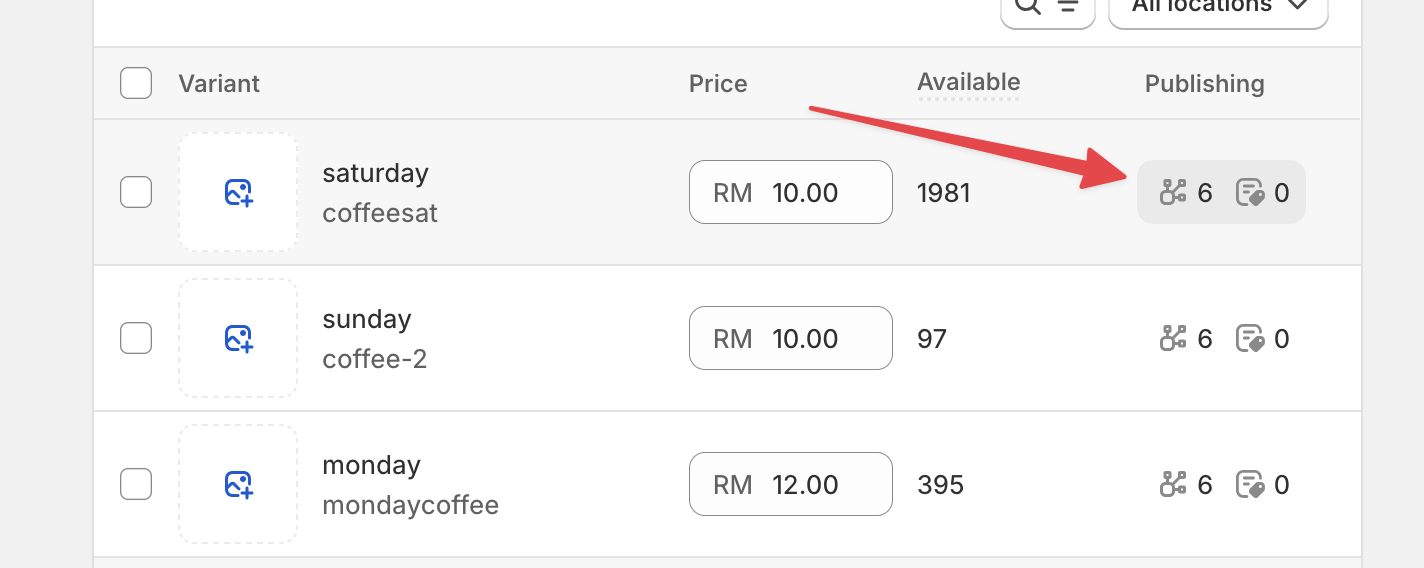
To unpublish a product variant (equivalent to set as draft), open the product detail page in your Shopify Admin, scroll to the variants list, and click the icons on the “Publishing” column.
Uncheck the “Online Stores” sales channel (and other applicable sales channel) :
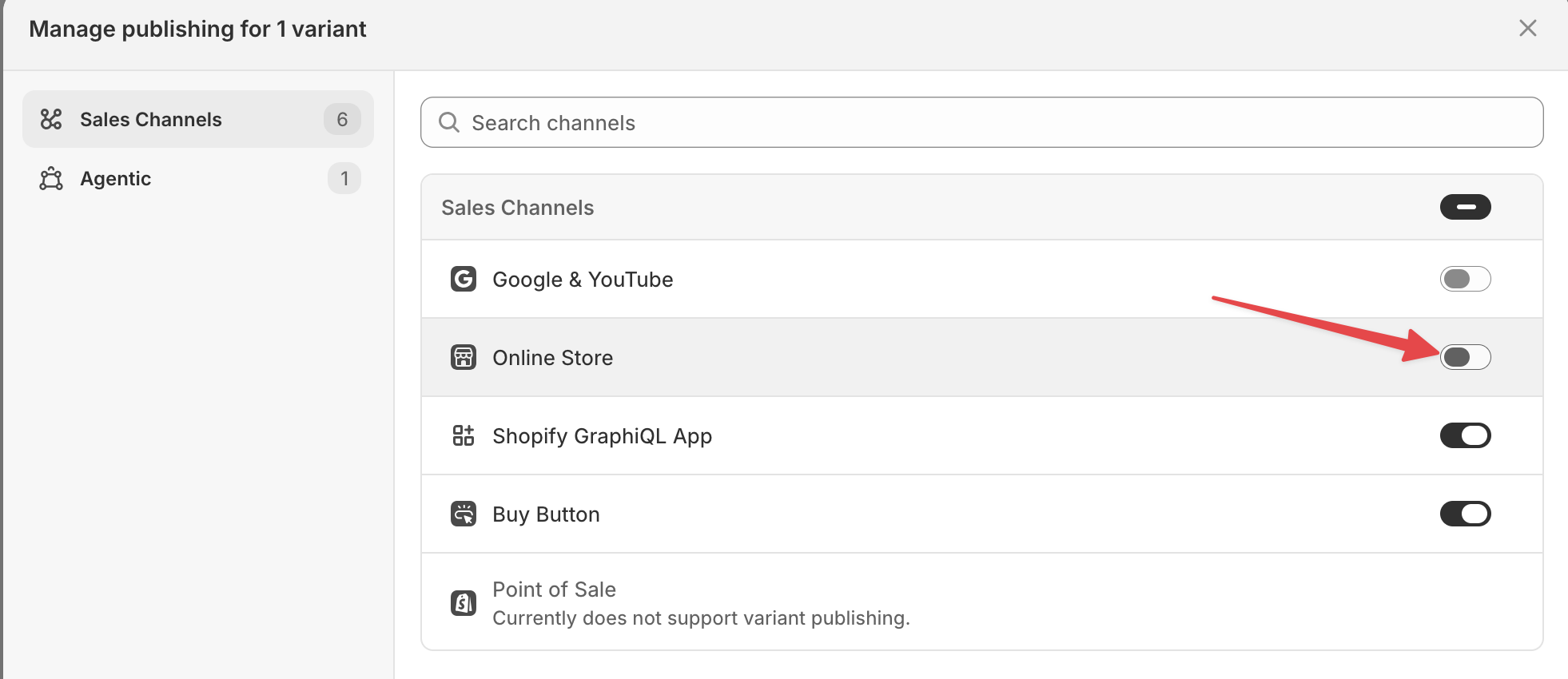
Click “Save”, then navigate to the product page, and you should see that variant is removed.
Customize your Shopify store without coding knowledge, and gain happy customers
I will send practical tutorials and guide which you can follow without coding experience, about once a week
We respect your privacy, unsubscribe any time